
事半功倍系列 javascript
清华大学出版的《事半功倍系列 javascript》,本人照着书敲出来的,有些翻译了一下.前几年看了一下,最近无事,重新翻了翻,很有帮助.本书应该有光盘的,但学校的书,光盘不知在哪.希望对你学 javascript有帮助
第一章javascript简介
1.在地址栏输入javascript语句
Javascript:Document.write("显示文字")
2.将javascript嵌入 HTML文档
<script language=javascript>
document.bgColor="blue"
</script>
第二章 使用变量和数组
1.声明变量
<script language=javascripe>
Var answer1,answer2,answer3,answer4;
answer1=9;
answer2=2.5
answer3="Milkey May"
answer4=true
</script>
2.使用整数
<script language=javascript>
var decimalNum,hexadecimalNum,octalNum
decimalNum=24
hexadecimalNum=0x24
octalNum=024
document.write("显示十进制数:"+ decimalNum+"<br>")
document.write("显示十六进制数:"+ hexadecimalNum +"<br>")
document.write("显示八进制数:"+ octalNum +"<br>")
</script>
3.使用浮点数
<script language=javascript>
var num1,num2,num3,num4
num1=1234567890000.0
num2=5.14e23
num3=0.0000123456
num4=6.0254e3-4
document.write("浮点数1:"+num1+"<br>")
document.write("浮点数2:"+num2+"<br>")
document.write("浮点数3:"+num3+"<br>")
document.write("浮点数4:"+num4+"<br>")
</script>
4.使用布尔值
<script language=javascript>
var answer1,answer2
answer1=true
answer2=false
document.write("显示布尔1:"+answer1+"<br>")
document.write("显示布尔2:"+answer2+"<br>")
</script>
5.使用字符串
<script language=javascript>
var str1,str2
str1="fdsgdg dsfdsf china"
str2="武汉市广播电视大学"
document.write("显示字符串1:"+str1+"<br>")
document.write("显示字符串2:"+str2+"<br>")
</script>
6.确定变量类型
<script>
var answer1,answer2,answer3,answer4
answer1=9
answer2=2.5
answer3="milky may"
answer4=true
document.write("变量1的类型是:"+typeof answer1 +"<br>")
document.write("变量2的类型是:"+typeof answer2 +"<br>")
document.write("变量3的类型是:"+typeof answer3 +"<br>")
document.write("变量4的类型是:"+typeof answer4 +"<br>")
</script>
7.将字符串转换成数字
<script>
var str1="31 days in january"
var int1=parseInt(str1)
document.write("str1的数据类型是 :"+typeof str1+"<br>")
document.write("int1的数据类型是 :"+typeof int1+"<br>")
</script>
8.将数字转换成字符串
<script>
var int1=256
var str1=""+int1
document.write("str1的数据类型是 :"+typeof str1+"<br>")
document.write("int1的数据类型是 :"+typeof int1+"<br>")
</script>
9.声明数组
<script>
array=new Array(5)
array[0]=1
array[1]=3
array[2]=5
array[3]=7
array[4]=11
document.write("数组是:"+array[0]+" "+array[1]+" "+array[2]+" "+array[3]+" "+array[4])
</script>
10.确定数组元素的个数
<script>
array=new Array(5)
array[0]=1
array[1]=3
array[2]=5
array[3]=7
array[4]=11
document.write("数组是:"+array[0]+" "+array[1]+" "+array[2]+" "+array[3]+" "+array[4]+"<br>")
document.write("数组的元素个数是"+array.length)
</script>
11.将数组转换为字符串
<script>
array=new Array()
array[0]="dark"
array[1]="apple"
array[2]="nebula"
array[3]="water"
str1=array.join()
str2=array.join(" ")
document.write(str1+"<br>")
document.write(str2)
</script>
12.对数组排序
<script>
array=new Array()
array[0]="dark"
array[1]="apple"
array[2]="nebula"
array[3]="water"
str1=array.sort()
document.write(str1+"<br>")
</script>
第三章 创建表达式
1.使用算术运算符
<script>
var1=12
var2=10
varadd=var1+var2
varsub=var1-var2
varmult=var1*var2
vardiv=var1/var2
varmod=var1%var2
document.write("数据1是:"+var1+"<br>")
document.write("数据2是:"+var2+"<br>")
document.write("数据相加是:"+varadd+"<br>")
document.write("数据相减是:"+varsub+"<br>")
document.write("数据相乘是:"+varmult+"<br>")
document.write("数据相除是:"+vardiv+"<br>")
document.write("数据相除取余数是:"+varmod+"<br>")
</script>
2.递增变量和递减变量
<script>
days=1
document.write("输出变量"+days+"<br>")
days++
document.write("递增后变量变为:"+days)
</script>
3.创建比较表达式
<script>
daysofmonth=28
if(daysofmonth==28)
month="february"
document.write("days of month:"+daysofmonth+"<br>")
document.write("month:"+month)
</script>
4.创建逻辑表达式
<script>
dayofmonth=28
if(dayofmonth==28 || dayofmonth==29)
month="february"
document.write("days of month:"+dayofmonth+"<br>")
document.write("month:"+month)
</script>
5.使用条件运算符
<script language="javascript">
stomach="hungry";
time="5:00";
(stomach=="hungry"&&time=="5:00") ? eat = "dinner":eat="a snack";
document.write("输出结果"+eat);
</script>
6.识别数字
<script>
var1=24;
(isNaN(var1))?document.write("变量var1"+var1+"不是数字"):Document.write("变量var1"+var1+"是数字")
</script>
第四章 控制程序流程
1.使用IF –Else语句
<script>
month="december"
date=25
if(month=="december" && date==25)
document.write("今天是圣诞节,商店关门")
else
document.write("欢迎,您来商店购物")
</script>
2.使用for 循环
<script>
for (count=1;count<=10;count++)
document.write("输出第"+count+"句"+"<br>")
</script>
3.使用while循环
<script>
count=1
while(count<=15){
document.write("输出第"+count+"句" +"<br>")
count++}
</script>
4.中断循环
<script>
count=1
while(count<=15){
count++
if(count==8)
break;
document.write("输出第"+count+"句"+"<br>")}
</script>
5.继续循环
<script>
count=1
while(count<=15){
count++
if(count==8)
continue;
document.write("输出第"+count+"句"+"<br>")}
</script>
6.使用javascript定时器
<script>
function rabbit()
{document.write("输出语句")
}
</script>
<body οnlοad=window.setTimeout(rabbit(),5000)>
7.设置定期间隔
<script>
window.setInterval("document.form1.text2.value=document.form1.text1.value",3000)
</script>
<form name=form1>
<input type=text name=text1><br>
<input type=text name=text2><br>
</form>
8.清除超时和间隔
<script>
stop=window.setInterval("document.form1.text2.value=document.form1.text1.value",300)
</script>
<form name=form1>
<input type=text name=text1><br>
<input type=text name=text2><br>
<input type=button name=button1 value=" 清除超时和间隔" οnclick=clearInterval(stop)>
</form>
第五章 使用函数
1.声明函数
<script>
function quote()
{ document.write("输出语句")
}
</script>
2.调用函数
<script>
function quote()
{ document.write("输出语句")
}
quote()
</script>
3.了解全局变量和局部变量
任何不用 var关键字声明的变量都是全局变量,任何在函数外声明的变量都是全局变量
4.将参数传送给函数
<script>
function f(item)
{document.write("输出参数"+item+"<br>")
}
f("fgdfgd")
f("参数二")
</script>
5.从函数返回值
<script>
function average(var1,var2,var3)
{ave=(var1+var2+var3)/3;
document.write("输出结果");
return ave;
}
document.write(average(34,56,78))
</script>
6.通过HTML链接调用函数
<script>
function quote(){
document.write(" 输出字符串")
}
</script>
<a href=javascript:quote()>通过HTML链接调用函数</a>
<a href=javascript:Document.write("输出字符")> 通过HTML链接调用函数,直接写javascript语句</a>
第六章 处理事件
1.检查鼠标单击
<form name=form1>
<input type=button name=button1 value=hello οnclick=document.form1.button1.value='there'>
</form>
2.检测双击
<form name=form1>
<input type=button name=button1 value=hello οnclick=document.form1.button1.value='你单击了按钮' οndblclick=document.form1.button1.value='你双击了该按钮'>
</form>
3.创建悬停按钮
<img src=go.gif οnmοuseοver=document.images[0].src='go2.gif' οnmοuseοut= document.images[0].src='go.gif'>
4.检测按键
<form name=form1>
<input type=text name=text1 value=hello οnkeypress="if(window.event.keyCode=='100') document.form1.text1.value='你按了d键'">
</form>
5.设置焦点
<form name=form1>
<input type=text name=text1 value=hello
onfous=document.form1.text1.value='该文本框获得焦点'
οnblur=document.form1.text1.value='该文本框失去焦点'>
</form>
6.检测下拉菜单选择
<form name=form1>
<select name=select1 size=4
onChange=document.form1.text1.value=document.form1.select1.value>
<option value="北京">北京</option>
<option value="上海">上海</option>
<option value="武汉">武汉</option>
<option value="天津">天津</option>
<option value="大连">大连</option>
</select>
<input tppe=text name=text1 value=hello>
</form>
7.创建网页加载和卸载信息
<body οnlοad=document.form1.text1.value='页面加载完毕' οnunlοad=alert('再见,欢迎再来')>
<form name=form1>
<input type=text name=text1 value="页面正在加载 ……">
</form>
第七章 使用对象
1.理解对象/属性和方法
<body bgcolor="green">
<script>
document.write("页面背景颜色是:"+document.bgColor)
document.write("页面前景颜色是:"+document.fgColor)
</script>
2.使用网页元素对象
<script>
</script>
<form name=form1>
<textarea name=ta1>dfgfdgfdhfdhdfdfgdf</textarea>
<input type=button value="选择文本" οnclick=document.form1.ta1.select()>
<input type=button value="显示文本" οnclick=document.write(document.form1.ta1.value)>
</form>
3.使用子对象
<form name=form1>
<input type=text name=text1 value=hello>
</form>
<script>
document.form1.text1.value="gdfgfd"
</script>
<form name=form1>
<input type=radio name=radio1>男
<input type=radio name=radio2>女
</script>
<script>
document.form1.radio1.checked=true
</script>
4.使用预定义对象
<script>
str1="dgdfgdfgdfhf固定法固定法功夫攻打法"
document.write(str1+"<br>")
str2=str1.substr(5)
document.write(str2+"<br>")
document.write("输出圆的面积:"+Math.PI*Math.pow(5.0,2))
</script>
5.创建新对象
<script>
today=new Date()
document.write("今天是"+(today.getMonth()+1)+"月"+today.getDate()+"日"+"<br>")
document.write("现在是:"+today.toLocaleString())
</script>
6.引用当前对象
<form name=form1>
<input type=text name=text1 value="dgdgdfgfd" οnclick=this.select()>
</script>
7.查看对象属性
<script>
for(prop in window)
{document.write("window."+prop+"="+window[prop]+"<br>");}
for(prop2 in location)
{document.write("location."+prop2+"="+location[prop]+"<br>");}
</script>
8.使用Array对象
<script>
array=new Array(10)
array[0]="bark"
array[1]="apple"
array[2]="nebula"
array[3]="cookie"
array[4]="technology"
document.write("数组元素个数是"+array.Length+"<br>")
document.write("用 join将数组合并"+array.join(" ")+"<br>")
document.write(" 数组排序"+array.sort())
</script>
9.使用 image 对象
<img src=**.gif alt="图片提示…." border=10>
<script>
document.write("图片提示是:"+document.images[0].alt+"<br>")
document.write("图片边框大小是:"+document.images[0].broder)
</script>
10.预加载图像
<script>
freddy=new Image()
freddy.src=freddy.gif
</script>
<body οnlοad=document.images[0].src=freddy.src>
,<img src="blank.gif">
</body>
11.改变图像
<img src=freddy.gif><br>
<form name=form1>
<input type=button name=button1 value="改变图像" onclickd=document.images[0].src=dudjp.gif>
</form>
12.使用link和anchor对象
<a name=anchor1>锚点1<br>
<a href=http://www.microsoft.com>Microsoft</a><br>
<a href=http://www.sohu.com>sohu</a><br>
<a href=http://www.sina.com.cn>sina</a><br>
<script>
document.write("本页面共有"+document.links.length+"链接"+"<br>")
document.write("本页面共有"+document.anchors.length+"锚点"+"<br>")
document.write("第一个链接协议是"+document.links[0].protocol+"<br>")
document.write("第一个链接路径是"+document.links[0].pathnamel+"<br>")
document.write("第一个链接href是"+document.links[0].hrefl+"<br>")
</script>
13.改变链接
<a href =http://www.microsoft.com>link</a>
<form name=form1>
<input type=button name=button1 value="改变链接" οnclick=document.links[0].href='http://www.sohu.com'>
</form>
14.使用history对象
<form name=form1>
<input type=button name=button1 value="向后返回2页" οnclick=window.history.go(-2)>
</form>
第八章 使用窗口
1.在浏览器的状态栏上显示文本
<body οnlοad=window.status="欢迎光临我的站点">
<a href=http://www.sohu.com>sohu</a>
</body>
2.改变背景色
<script>
document.bgColor="orange"
</script>
3.列举背景颜色
<body bgColor =green>
<script>
document.write("当前背景色是:"+document.bgColor)
</script>
</body>
4.改变文本和链接颜色
<script>
document.bgColor="orange"
document.fgColor="blue"
document.linkColor="red"
</script>
<h2>看看这段文本颜色</h2>
<a href=http://www.sohu.com>sohu</a>
</body>
5.改变文档标题
<script>
name="Mouse"
document.title="welcome to "+name+"'s House"
document.write(document.title)
</script>
6.显示修改日期
<script>
document.write("本页面最后修改时间是"+document.lastModified)
</script>
7.查看当前文档的URL
<script>
document.write("本页面的URL:"+document.URL)
</script>
8.查看引用页
<script>
document.write("本页面的引用页是"+document.referrer)
</script>
9.打开新的浏览器窗口
<script>
window.open("*.htm","title","width=200,height=400,resizable=yes")
</script>
10.关闭远程窗口
close.html:
<script>
document.write("正文")
</script>
<form name=form1>
<input type=button name=button1value="关闭" οnclick=window.close()>
</form>
open.html
<script>
window.open("close.html","romote","width=200,height=400,resizable=yes")
</script>
11.打印窗口
<script>
document.write("正文")
</script>
<form name=form1>
<input type=button value=打印 οnclick=window.print()>
</form>
12.移动窗口
<form name=form1>
水平方向<input type=text name=x value=20>
垂直方向<input type=text name=y value=50>
<input type=button value="移动窗口到…"οnclick=window.moveTo(document.form1.x.value,document.form1.y.value)>
</form>
<form name=form1>
水平方向<input type=text name=x value=20>
垂直方向<input type=text name=y value=50>
<input type=button value="移动窗口"οnclick=window.moveBy(document.form1.x.value,document.form1.y.value)>
</form>
13.改变窗口大小
<form name=form1>
水平方向<input type=text name=x value=200>
垂直方向<input type=text name=y value=500>
<input type=button value="改变窗口大小到….."οnclick=window.resizeTo(document.form1.x.value,document.form1.y.value)>
</form>
<form name=form1>
水平方向<input type=text name=x value=200>
垂直方向<input type=text name=y value=500>
<input type=button value="改变窗口大小"οnclick=window.resizeBy(document.form1.x.value,document.form1.y.value)>
</form>
14.用警告对话框通知用户
<script>
window.alert("welcome")
</script>
15.用提示对话框接受输入
<script>
name=window.prompt("输入姓名","姓名")
document.write(" 欢迎您:"+name+"来到这里")
</script>
16.用确认对话框使用户做出决定
<script>
like=window.confirm("你觉得好吗?")
if(like==true)
document.write("谢谢你的夸奖")
else
document.write("希望得到你的夸奖")
</script>
第九章 使用字符串
1.使用字符串对象
<script>
mystring="gdgdfgfddddaaaaaaaaaaaabbbbbbbbbbbbbbbbbvbhg.<br>"
document.write(mystring)
document.write(mystring.bold())
document.write(mystring.toUpperCase())
</script>
2.使用子字符串
<script>
str1="fdsf 1111 gfdgfd dfdsf cccc dddd.<br>"
document.write(str1)
document.write(str1.substring(0,13)+"<br>")
document.write(str1.substr (20,11)+"<br>")
</script>
3.连接字符串
<script>
str1="may you find"
str2="peace,happiness and prosperity.<br>"
document.write(str1+"<br>")
document.write(str2)
document.write(str1.concat(str2))
document.write(str1+=str2)
</script>
4.格式化字符串变量
<script>
str1="peace,happiness and prosperity.<br>"
document.write(str1)
document.write(str1.big())
document.write(str1.small())
document.write(str1.bold())
document.write(str1.italics())
document.write(str1.strike())
document.write(str1.fontsize(6))
document.write(str1.fontcolor(green))
</script>
5.创建锚和链接
<script>
str1="this is the bigginning of the page.<br>"
str2="….<br>"
str3="this is the end of the page .<br>"
str4="link to the start<br>"
str5="link to the end<br>"
document.write(str1.anchor("start"))
for(i=0;i<10;i++)
document.write(str2);
document.write(str3.anchor("end"))
document.write(str4.link("#start"))
document.write(str5.link("#end"))
</script>
6.确定字符串长度
<script>
str1="this is the bigginning of the page."
document.write(str1+"<br>")
document.write( "字符串的长度是:"+str1.length)
document.write("字符串全部大写是;"+str1.toUpperCase())
document.write("字符串全部小写是;"+str1.toLowerCase())
</script>
7.在字符串内搜索
<script>
str1="this is the end of the line.<br>"
document.write(str1)
document.write("字符end在字符串的位置是"+str1.search("end"))
document.write("字符dog在字符串的位置是"+str1.search("dog"))
</script>
8.定位字符串中的字符
<script>
str1="spring is a time for flowers and trees and baby bunnles<br>"
document.write(str1)
document.write("the index for the second word ‘and' is"+str1.indexOf("and",30))
documednt.write("the last index of the word ‘and' is "+str1.lastIndexOf("and"))
</script>
9.替换字符串中的文本
<script>
str1="spring is a time for flowers and trees and baby bunnles<br>"
document.write(str1)
document .write(str1.replace("and",","))
</script>
10.字符串分离
<script>
str1="spring is a time for flowers and trees and baby bunnles<br>"
document.write(str1)
str1array=str1.split(" ")
document.write(str1array[0]+"<br>")
document.write(str1array[1]+"<br>")
document.write(str1array[2]+"<br>")
document.write(str1array[3]+"<br>")
</script>
第十章 使用日期和时间
1.使用Date对象
<script>
cdate=new Date("august 2,1989 12:30:00")
document.write(cdate)
</script>
2.显示当地时间和日期
<script>
cdate=new Date()
document.write("当前时间是:"+cdate.toGMTString()+"<br>")
document.write("日期和时间是:"+cdate.toLocaleString())
</script>
3.获得时间和日期值
<script>
cdate=new Date()
document.write("显示当前的星期"+cdate.getDay()+"<br>")
document.write("显示当前的月份"+cdate.getMonth()+"<br>")
document.write("显示当前的日期"+cdate.getDay()+"<br>")
document.write("显示当前的年份"+cdate.getYear()+"<br>")
document.write("显示当前的小时"+cdate.getHours()+"<br>")
document.write("显示当前的分钟"+cdate.getMinutes()+"<br>")
document.write("显示当前的秒"+cdate.getSeconds()+"<br>")
</script>
4.设置时间和日期值
<script language=javascript>
cdate=new Date("December 25,1984")
document.write("显示日期"+cdate+"<br>")
document.write("设置月份"+cdate.setMonth(10)+"<br>")
document.write("设置日期"+cdate.setDate(23)+"<br>")
document.write("设置年份"+cdate.setYear(2000)+"<br>")
document.write("设置小时"+cdate.setHours(13)+"<br>");
document.write("设置分钟"+cdate.setMinutes(47)+"<br>");
document.write("设置秒"+cdate.setSeconds(23)+"<br>");
document.write("显示设置后的日期和时间"+cdate);
</script>
第十一章 使用Math对象
1. 使用Math对象
<script language=javascript>
</script>
<form name=form1>
圆的半径:<input type=text name=rad><br>
圆的面积:<input type=text name=area><br>
<input type=button name=button1 value=计算圆的面积 οnclick=document.form1.area.value=document.form1.rad.value*document.
form1.rad.value*Math.PI>
</form>
2.生成随机数
<script>
array1=new Array(
"这是第1句",
"这是第2句",
"这是第3句",
"这是第4句",
"这是第5句",
"这是第6句")
RandomNo=Math.floor(array1.length*Math.random())
document.write("随机输出某一句"+"<br>"+array1[RandomNo])
</script>
3.使用平方根
<form name=form1>
value:<input type=text name=va1><br>
平方根<input type=text name=sqrt><br>
<input type=button name=button1 value=计算平方根
οnclick="document.form1.sqrt.value=Math.sqrt(document.form1.va1.value)">
</form>
4.数字的舍入
<form name=form1>
输入<input type=text name=val><br>
舍入的结果<input type=text name=round><br>
<input type=button name=button1 value=计算结果 οnclick=document.form1.round.value=Math.round(document.form1.val.value)>
</form>
5.乘方运算
<form name=form1>
底数<input type=text name=val><br>
指数<input type=text name=power><br>
幂<input type=text name=result><br>
<input type=button name=button1 value=计算结果 οnclick="document.form1.result.value=Math.pow (document.form1.val.value,document.form1.power.value)">
</form>
6.发现最小值和最大值
<form name=form1>
数字1<input type=text name=val1><br>
数字2<input type=text name=val2><br>
最小值<input type=text name=min><br>
最大值<input type=text name=max><br>
数字1<input type=button value=计算 οnclick="document.form1.min.value=Math.min (document.form1.val1.value,document.form1.val2.value);document.form1.
max.value= Math.max(document.form1.val1.value,document.form1.val2.value)">
</form>
第十二章 使用表单
1.使用文本框
<form name=form1>
<input type=text value="information ,please"name=text1>
</form>
<script>
document.write("表单text1类型是: "+document.form1.text1.type+"<br>")
document.write("表单text1名称是: "+document.form1.text1.name+"<br>")
document.write("表单text1值是: "+document.form1.text1.value+"<br>")
document.write("表单text1大小是: "+document.form1.text1.size+"<br>")
</script>
<form name=form1>
<input type=text name=text1 value=click here
οnfοcus=document.form1.text1.select()>
</form>
2.使用密码框
<form name=form1>
<input type=password name=pw1 value=daylight>
</form>
<script>
document.write("表单pw1的类型:"+document.form1.pw1.type+"<br>")
document.write("表单pw1的名称:"+document.form1.pw1.name+"<br>")
document.write("表单pw1的值:"+document.form1.pw1.value+"<br>")
document.write("表单pw1的大小:"+document.form1.pw1.size+"<br>")
</script>
3.使用隐藏字段
<form name=form1>
<input type=hidden name=hid1 value=piece of eight>
</form>
<script>
document.write("表单hid1的类型:"+document.form1.hid1.type+"<br>")
document.write("表单hid1的名称:"+document.form1.hid1.name+"<br>")
document.write("表单hid1的值:"+document.form1.hid1.value+"<br>")
</script>
4.使用文本区域框
<form name=form1>
<textarea name=ta1>how many grains of sand are there in the sahara desert?</textarea>
</form>
<script>
document.write("表单ta1的类型:"+document.form1.ta1.type+"<br>")
document.write("表单ta1的名称:"+document.form1.ta1.name+"<br>")
document.write("表单ta1的值:"+document.form1.ta1.value+"<br>")
document.write("表单ta1的横向宽度:"+document.form1.ta1.cols+"<br>")
document.write("表单ta1的纵向宽度:"+document.form1.rows.value+"<br>")
</script>
6.使用重置按钮
<form name=form1>
<input type=reset name=reset1 value="rest form">
</form>
<script>
document.write("表单reset1的类型:"+document.form1.reset1.type+"<br>")
document.write("表单reset1的名称:"+document.form1.reset1.name+"<br>")
document.write("表单reset1的值:"+document.form1.reset1.value+"<br>")
</script>
7.使用提交按钮
<form name=form1>
<input type=submit name=submit1 value="submit form">
</form>
<script>
document.write("表单submit1的类型:"+document.form1.submit1.type+"<br>")
document.write("表单submit1的名称:"+document.form1.submit1.name+"<br>")
document.write("表单submit1的值:"+document.form1.submit1.value+"<br>")
</script>
8.使用复选按钮
<form name=form1>
<input type=checkbox name=cb1 >computer savvy?
</form>
<script>
document.write("表单cb1的类型:"+document.form1.cb1.type+"<br>")
document.write("表单cb1是否被选择?:"+document.form1.cb1.checked+"<br>")
document.write("表单cb1的名称:"+document.form1.cb1.name+"<br>")
</script>
9.使用单选按钮
<form name=form1>
<input type=radio name=radio1>male
<input type=radio name=radio1>female
</form>
<script>
document.write("第一个按钮被选择"+document.form1.radio1[0].checked+"<br>")
document.write("第二个按钮被选择"+document.form1.radio1[1].checked+"<br>")
document.write("按钮的名称"+ document.form1.radio1[0].name+"<br>")
document.write("按钮的个数"+document.form1.radio1.length)
</script>
10.使用选择列表
<form name=form1>
<select name=select1 size=4>
<option name=option1 value=lon>london,England</option>
<option name=option2 value=dub>Dublin,Ireland</option>
</select>
</form>
<script>
document.write("这个选择列表的名称"+document.form1.select1.name+"<br>")
document.write("这个选择列表的长度"+document.form1.select1.length+"<br>")
document.write("这个选择列表当前被选择的索引号"+document.form1.select1.selectedIndex+"<br>")
document.write("这个选择列表的尺寸"+document.form1.select1.size+"<br>")
</script>
11.验证表单的有效性
<script>
function validate(){
if(document.form1.text1.value!='1'||'2'||'3'||'4'){
alert("请输入1~4的整数")
}
}
</script>
<form name=form1>
请输入1~4的整数:
<input type=text name=text1 size=4 οnchange=validate()>
</form>
12.控制表单焦点
<form name=form1>
<input type=text name=text1 value=where is you focus?><br>
<input type=text name=text2 value=is there?><br>
<input type=text name=text3 value=or maybe here?><br>
<input type=button name=button1 value="text box #1" οnclick=document.form1.text1.focus()><br>
<input type=button name=button2 value="text box #2" οnclick=document.form1.text2.focus()><br>
<input type=button name=button3 value="text box #3" οnclick=document.form1.text3.focus()><br>
</form>
第十三章 使用分栏
第十四章 使用navigator
1.使用navigator对象
<script>
document.write("navigator对象的属性"+"<br>")
document.write("appcodename:"+navigator.appCodeName+"<br>")
document.write("appname::"+navigator.appName+"<br>")
document.write("appversion:"+navigator.appVersion+"<br>")
document.write("platform:"+navigator.platform+"<br>")
document.write("userAgent:"+navigator.userAgent+"<br>")
</script>
<script>
document.write("navigator对象的方法"+"<br>")
document.write("javaEnabled():"+navigator.javaEnabled())
</script>
2.检查用户的浏览器
<script>
if(navigator.appName.indexOf("Microsoft")!=-1){
document.write("用户浏览器是微软的IE浏览器"+"<br>")}
else if(navigator.appName.indexOf("Netscape")!=-1){
document.write("用户浏览器是netscape的netscape浏览器"+"<br>")}
if(navigator.appVersion.indexOf("4.0")!=-1){
document.write("you are using a version 4.0compatible browser")
}
else{
document.write("this browser is not 4.0 compliant")}
</script>
3.检测用户的操作系统
<script>
if (navigator.platform.indexOf("win32")!=-1){
document.write("you are using a computer running windows 95 or highter")}
else{
document.write("this computer is not running windows 95 or higher")}
</script>
4.使用location对象
<script>
document.write("location对象的属性"+"<br>")
document.write("hash"+location.hash+"<br>")
document.write("hostname"+location.hostname+"<br>")
document.write("host"+location.host+"<br>")
document.write("href"+location.href+"<br>")
document.write("port"+location.port+"<br>")
document.write("search"+location.search+"<br>")
</script>
重新加载网页
<form name=form1>
<input type=button name=button1 value=重新加载本页 οnclick=location.reload>
</form>
5.使用cookie
<script>
finction makecookie(){
if(!document.cookie){
name=prompt("请输入你的姓名");
document.cookie="name="+name+";";}
}
</script>
<body οnlοad=makecookie()>
<script>
function makecookie(){
if(!document.cookie){
name=prompt("请输入你的姓名")
document.cookie="name="+name+";";
namestart=document.cookie.indexOf("=");
nameend=document.cookieindexOf(";");
document.writeln("your name is:"+document.cookie.substring(namestart+1,nameend)+",br>")
}
}
</script>
相关文章:

Golang 本地帮助文档
2019独角兽企业重金招聘Python工程师标准>>> godoc -http:8000 url: http://127.0.0.1:8000 转载于:https://my.oschina.net/koalaone/blog/169626

2021版Java知识体系详解!(赠视频)
本篇文章是我们整理的一份架构师的成长路线,包括了并发编程、设计模式、常用框架、中间件、微服务与分布式、常用工具、JVM、MySQL、数据结构与算法,还有架构师精选视频、架构师成长路线高清大图。又是新的一年,每一年都会有人在成为架构师的…

【6】font-size 字体属性
font-style -- 字体风格font-variant -- 小型大写字母文本font-weight -- 文本的粗细font-size/line-height -- 大小/行高font-family -- 字体常用格式: fo…
MIS开发中.net Framework的打印功能
Microsoft .net Framework的打印功能都以组件的方式提供,为程序员提供了很大的方便,但是这几个组件的使用还是很复杂的,有必要解释一下。 打印操作通常包括以下四个功能 1 打印设置 设置打印机的一些参数比如更改打印机驱动程序等 2 页面设置…

UML部署图(转载)
概述: 部署图用于可视化的软件组件部署的系统中的物理组件的拓扑结构。 因此,部署图是用来描述一个系统的静态部署视图。部署图由节点和它们之间的关系。 目的: 部署名称本身描述的原理图的目的。部署图用于描述软件组件部署的硬件组件。组件图和部署图是密切相关的…

一年新增457万例,用 Python 揭示癌症的可怕之处
来源 | 数据分析与篮球作者 | 俊欣头图 | 下载于视觉中国2月27日下午5时许,香港著名演员吴孟达去世,引发了众多影星以及网友在社交媒体上面的悼念,根据其好友田启文的透露,吴孟达是去年年底发现自己患上肝癌的,当时癌细…
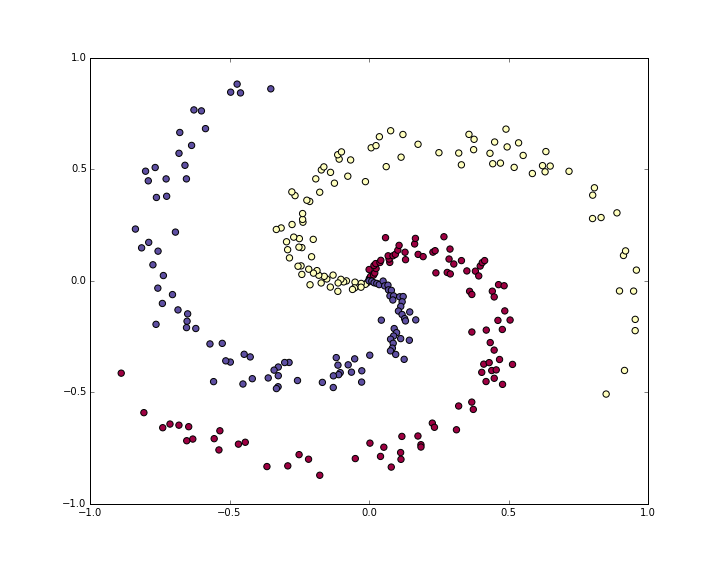
深度学习与计算机视觉系列(9)_串一串神经网络之动手实现小例子
深度学习与计算机视觉系列(9)_串一串神经网络之动手实现小例子 作者:寒小阳 时间:2016年1月。 出处:http://blog.csdn.net/han_xiaoyang/article/details/50521072 声明:版权所有,转载请联系作者并注明出处 1.引言 前面…
虚拟主机上用Asp.net实现Urlrewrite
在网上看到,很多朋友在asp.net中做urlrewrite,用的是HttpHandle+Server.Transfer的方法。其实这种方法是错误的。第一,HttpHandle是实现不了urlrewrite的;第二Server.Transfer是标准的重定向,根本不是urlre…
String spilt时转义特殊字符【转】
在使用String.split方法分隔字符串时,分隔符如果用到一些特殊字符,可能会得不到我们预期的结果。 我们经常使用public String[] split(String regex)方法来拆分一个有分隔符的字符串,但是由于参数regex是一个 regular-expression的匹配模式而…

融合AI与大数据技术,腾讯教育发布智能作业灯
3月2日,腾讯教育新品发布会在深圳举行,发布会上,腾讯教育联合暗物智能正式对外发布了AILA智能作业灯,并与华东师范大学出版社、宏途教育、众诚智学教育、江西软云科技等教育行业合作伙伴签订战略合作协议,共同打造智慧…

【踩坑记录】记一次MySQL主从复制延迟的坑
最近开发中遇到的一个MySQL主从延迟的坑,记录并总结,避免再次犯同样的错误。 情景 一个活动信息需要审批,审批之后才能生效。因为之后活动要编辑,编辑后也可能触发审批,审批中展示的是编辑前的活动内容,考虑…
ASP.NET 应用中大文件上传研究
在项目中经常要用到了大文件上传,要上传的文件有100多m,于是研究现在国内使用的大文件上传的组件发现用的比较多的有两个控件AspnetUpload 2.0和Lion.Web.UpLoadModule,两个控件的方法是:利用隐含的HttpWorkerRequest,…

哪家互联网公司涨薪最厉害?居然不是阿里腾讯
最近脉脉职言区有一条讨论火了:哪家互联网公司涨薪最厉害?按照拼多多员工的说法,应届毕业生可以拿比腾讯阿里高30%的薪资,而有工作经验的员工普遍薪资水平也高出业内30%~50%以上。而且在去年由于疫情众多企业降薪、甚至裁员的状况…
如何修改 远程桌面的 默认端口号 3389
修改注册表的以下位置的键值: [HKEY_LOCAL_MACHINE\SYSTEM\CurrentControlSet\Control\Terminal Server\WinStations\RDP-Tcp]"PortNumber"dword:00000d3d

Yolov11-detect训练自己的数据集
至此,整个YOLOv11的训练预测阶段完成,与YOLOv8差不多。欢迎各位批评指正。
联通和阿里云合作 建互联网云化卡号管理系统
1月17日晚间消息,继去年11月中国联通与阿里巴巴签订战略合作框架协议之后,今天下午阿里云宣布将于中国联通建卡号管理系统“cBSS2.0集中号卡系统”。据了解,这将是电信行业第一个核心业务系统云化改造的重点工程,也是云计算技术在…
如何最大限度提高.NET的性能
优化 .NET的性能 1)避免使用ArrayList。 因为任何对象添加到ArrayList都要封箱为System.Object类型,从ArrayList取出数据时,要拆箱回实际的类型。建议使用自定义的集合类型代替ArrayList。.net 2.0提供了一个新的类型,叫泛型…

别找了,Thonny 才是 Python 小白的最理想的 IDE
来源 | Python编程时光作者 | 写代码的明哥头图 | 下载于视觉中国当你在搜索引擎(如百度)或者各种问答社区(如知乎)搜索『学习Python 最好的 IDE/编辑器是哪个?』的时候,我想答案肯定是:PyCharm…

图书抄袭何时休,技术人的版权在哪里?
今天,一个很偶然的机会,看到了一本北京邮电大学出版社出版的技术图书《Linux服务器架设、性能调优、集群管理教程——实训与项目案例》,感觉有种似曾相识的感觉,于是打开目录大概了解了下,一个我不想看到的现象发生了&…
让MySql支持表情符号(MySQL中4字节utf8字符保存方法)
UTF-8编码有可能是两个、三个、四个字节。Emoji表情是4个字节,而MySQL的utf8编码最多3个字节,所以数据插不进去。解决方案:将编码从utf8转换成utf8mb4。 1. 修改my.ini [mysqld] character-set-serverutf8mb4 2. 在Connector/J的连接参数中&a…
短信编码类无错版PDUdecoding.cs
////程 序 员:武志文(蚕蛹)/// sillnet163.net///文 件:PDUdecoding.cs///概 要:针对国内短信编码(USC2)///组成结构:包含四个函数:/// smsDecodedCenterNumber(string…

你还有学了三年建模的朋友吗?他有救了
【 编者按】“我朋友学了 3 年建模”系列,一直以浮夸的操作占据于各大视频网站搞笑榜。此前,来自布拉格捷克理工大学、 Google 研究院、和华盛顿大学以及苏黎世联邦理工学院的研究者们发布了 Monster Mash 项目的论文和动效视频。用户绘制二维图像&#…
iOS培训objective-c——实例化对象
蓝鸥iOS培训推荐:好像好长时间没和大家分享了,那么今天主要和大家说说OC内容创建实例化对象,基本让也就分为几大类:1.ClassName*myNewClassName;//指针2.myNewClassName[ClassNamealloc];//通过alloc这个命令申请一个空间来存放我…
#423 Div2 D
#423 Div2 D 题意 构造一个 n 个节点的树,恰好有 k 个叶子节点 (叶子节点的定义是只与树上的某一个节点存在连边),要求任意两个叶子节点的距离的最大值最小,距离为两个节点间边的数量,输出距离的最大值,以及 n - 1 条边…
CDMA模块上网设置的过程
CDMA模块上网设置的过程一) AT指令设置部分(1) ATCSQ 检查信号 若返回10—31,99之间的信号数字则继续,如果信号是99,99,则应该考虑不停的键入A/命令,不停的让模块去搜寻网络。&…

RedHat 年度报告:只索取不贡献的开源消费“大户”不受待见
编译 | 清儿爸编辑 | 夕颜头图 | 下载于视觉中国据 Red Hat 公司委托发布的一份新报告称,新冠疫情可能在云计算基础设施和企业开源软件方面留下不可磨灭的印记。Red Hat 是 IBM 于 2018 年以 340 亿美元收购的企业开源软件产品供应商。第三次年度《企业开源现状》&a…
做产品的一些思考
从我当前的职业经历来看,做过两种类别的产品:一种是客户定义好了需求由我们去实现,我姑且称其为做项目;一种是自己去探索用户需求然后在不断的摸索中引导用户,实现价值,这是我笔下真正的产品。做项目目标明…
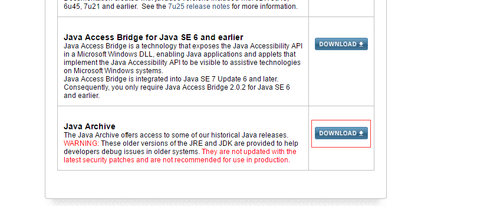
查看JDK的历史版本
1.打开如下链接http://www.oracle.com/technetwork/java/javase/downloads/index.html2.查找如下内容,点击进行3.选择你需要的版本,点击进入4.找到相应的版本下载即可转载于:https://blog.51cto.com/suyanzhu/1947530

终于有人解救Python人了!
从事Python开发的这些年中,我见过很多相关的入门教程和书籍,他们大都这样讲 :先介绍 Python 的基本语法规则、list、dict、tuple 等数据结构,然后再介绍字符串处理和正则表达式,介绍文件等IO操作.... 就这样一点一点往…
WISMO模块GPRS上网设置的过程
WISMO模块GPRS上网设置的过程一) AT指令设置部分(1) ATCGCLASS“B”置为“B”模式。(2) ATCGDCONT1,“IP”,“CMNET”设置APN。(3) ATCSQ 检查信号 若返回10—31&#x…